
Knowledge Base
Find information about supported sets, set codes, and more.
Getting Started
New to Card Scry? Get up and running quickly with our comprehensive Quick Start Guide. This guide will walk you through everything you need to know to start using the Card Scry API, including account registration, API key setup, and making your first request.
View Quick Start Guide →Quick Start Guide
Get up and running with Card Scry API in just a few minutes.
Getting started with Card Scry is fairly straight forward. The first thing you need to do is get yourself an API key. In this guide, we'll be using the "Free" tier as an example.
Table of Contents
Step 1: Register an Account
First, browse here to register an account in our Card Scry Dev Portal: https://dev.cardscry.com/signup
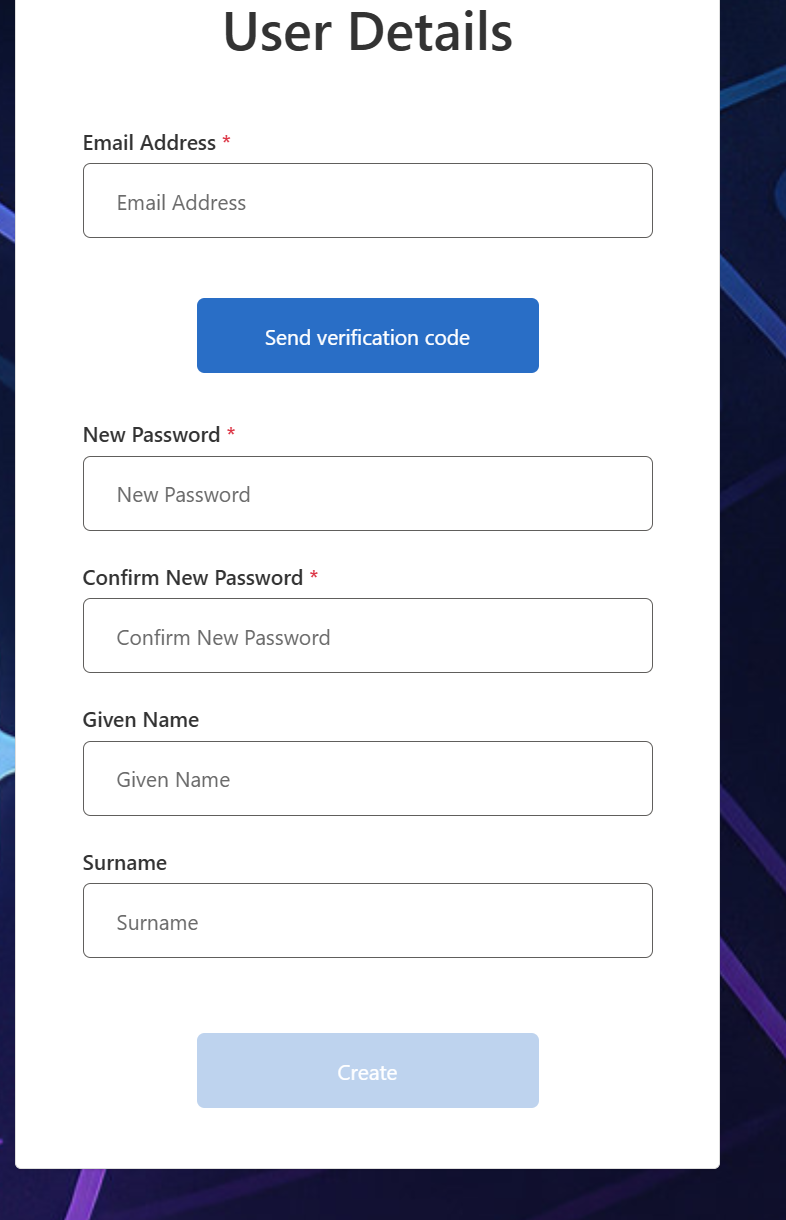
Step 2: Verify Your Email
Once you put in your email address, click "Send verification code" and then retrieve it from your email and put the code in place.
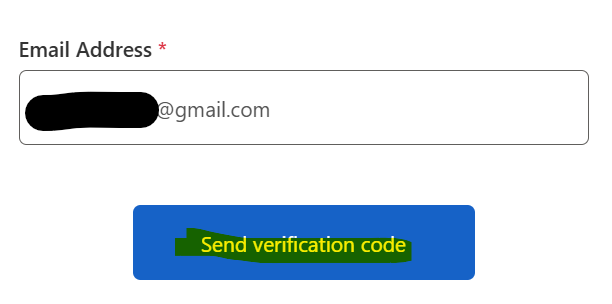
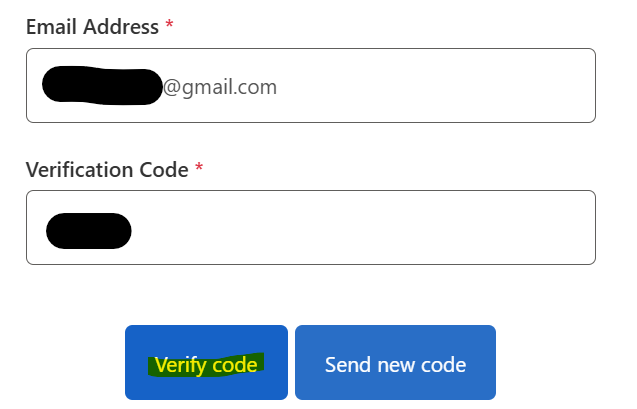
After that, you can complete the rest of the form and complete your registration.
Step 3: Subscribe to the Free API
Following that, you'll be signed in and directed to our Dev Portal. Make your way to our CardScry API (Free) Product page here: https://dev.cardscry.com/card-scry-api
Next, go ahead and click the "Subscribe" Button for the Free Card Scry API.
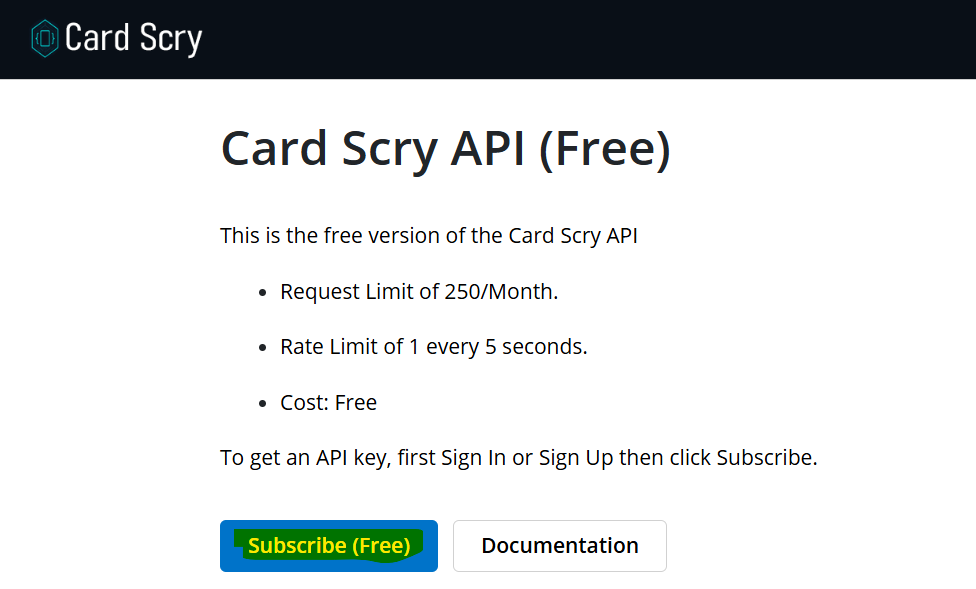
You'll be redirected to a stripe checkout page to put in your information, the price for the free API is obviously $0 and you will not be charged. The reason you have to go through stripe for this is because our subscription management and validation is tied stripe. You will not be charged.
Step 4: Get Your API Key
Upon completion, you'll be redirected to your profile page on our dev portal. From there, you can click on the elipses to the right of your subscription and choose "Show keys" to see your API key. This key will need to be provided in the "Ocp-Apim-Subscription-Key" header of your request.
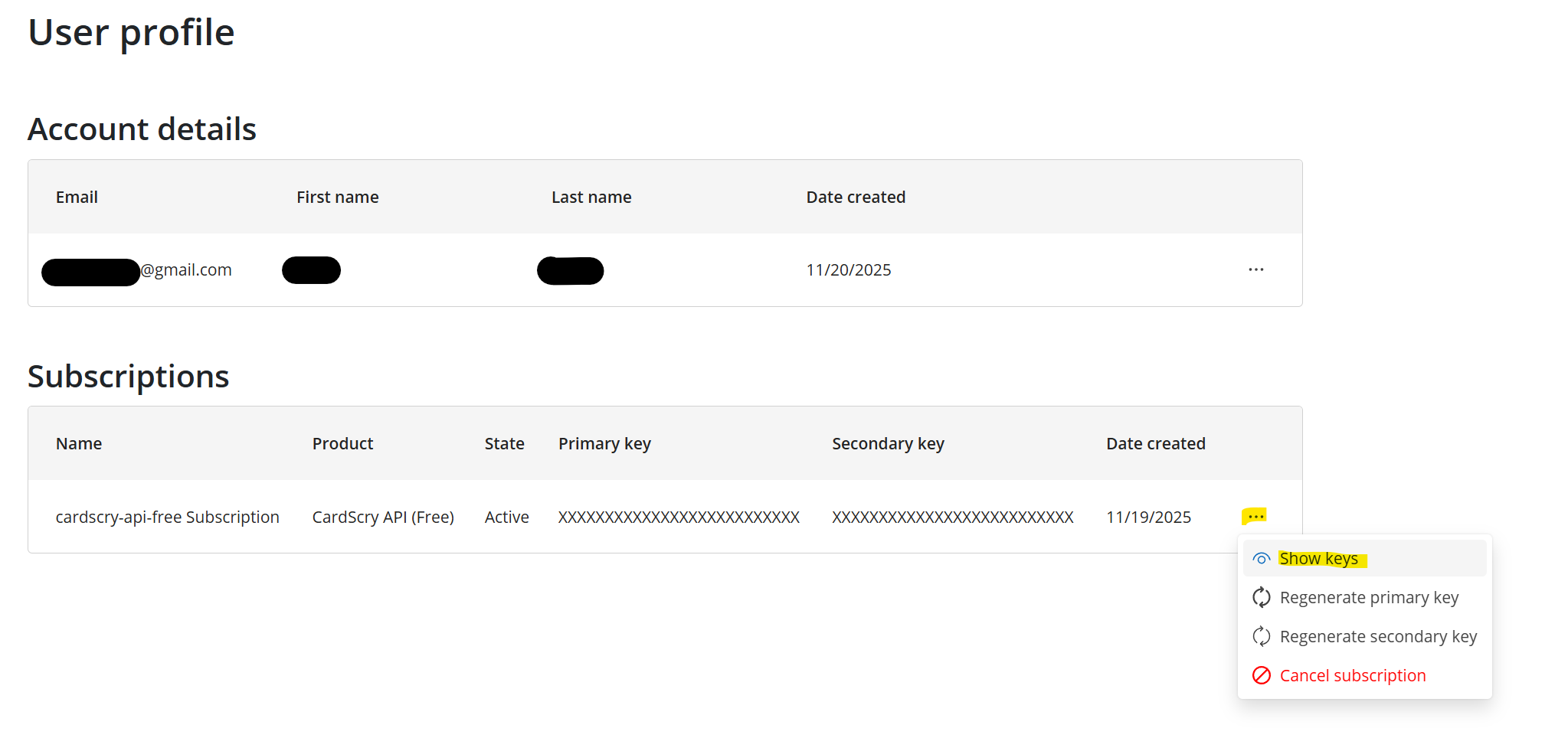
The only difference when using the Free API and the Pro version is that we use the endpoint https://api.cardscry.com/free as the base url. The pro version simply does not have the /free at the end.
Step 5: Make Your First Request
Now that you have your API key, that was really the hard part. Next we can submit a request to the API. There's two ways to submit, the first is by providing the image file itself and the other is by providing the image in Base64 format.
The endpoint for providing an image file is /analyze and the endpoint for providing the base64 image is /analyze-base64.
Basic Request Examples
Here's a cURL and Python example of the /analyze endpoint:
cURL:
curl -X POST "https://api.cardscry.com/free/analyze" \
  -H "Ocp-Apim-Subscription-Key: 9999999999999999999" \
  -F "image=@C:\Path\To\Card.png"
Python:
import requests

url = "https://api.cardscry.com/free/analyze"
headers = {
    "Ocp-Apim-Subscription-Key": "9999999999999999999"
}

with open(r"C:\Path\To\Card.png", "rb") as f:
    files = {"image": f}
    response = requests.post(url, headers=headers, files=files)
Enhanced Request with Additional Parameters
We also suggest passing along information you have about the card to help with accuracy and speed. You can pass along the set code and/or the game. For example:
cURL:
curl -v -X POST "https://api.cardscry.com/free/analyze" \
  -H "Ocp-Apim-Subscription-Key: 9999999999999999999" \
  -F "image=@C:\Path\To\Card.png" \
  -F "set_code=dp3" \
  -F "game=Pokemon"
Python:
import requests

url = "https://api.cardscry.com/free/analyze"

headers = {
    "Ocp-Apim-Subscription-Key": "9999999999999999999"
}

with open(r"C:\Path\To\Card.png", "rb") as f:
    files = {"image": f}
    data = {
        "set_code": "dp3",
        "game": "Pokemon"
    }
    response = requests.post(url, headers=headers, files=files, data=data)
Free and Pro Endpoints
Card Scry API offers two subscription tiers: Free and Pro. Each tier uses a different base endpoint:
-
•
Free Subscription:
https://api.cardscry.com/free -
•
Pro Subscription:
https://api.cardscry.com/
Both Free and Pro subscriptions have access to the /analyze and /analyze-base64 operations.
Available Endpoints
/analyze
Submit a card image file for analysis. This endpoint accepts image files directly.
curl -X POST "https://api.cardscry.com/analyze" \
  -H "Ocp-Apim-Subscription-Key: <YOUR_KEY>" \
  -F "game=mtg" \
  -F "set_code=blb" \
  -F "image=@MTG_Example.jpg"
/analyze-base64
Submit a card image encoded in Base64 format for analysis.
curl -X POST "https://api.cardscry.com/analyze-base64" \
  -H "Ocp-Apim-Subscription-Key: <YOUR_KEY>" \
  -F "image=base64_string" \
  -F "game=mtg" \
  -F "set_code=blb"
/health
Check the health status of the API service.
curl -v -X GET "https://api.cardscry.com/health" \
  -H "Ocp-Apim-Subscription-Key: <YOUR_KEY>"
Authentication
To use the Card Scry API, you must first register an account through our developer portal at dev.cardscry.com. After creating your account, you'll need to subscribe to either the Free or Pro version of the API.
Once you've subscribed, you'll be able to view your API key from your profile page. Simply click on the ellipses next to your subscription and select "Show keys" to reveal your API key.
Using Your API Key
All API requests must include your API key in the request headers. Use the Ocp-Apim-Subscription-Key header with your API key as the value to authenticate your requests.
Rate Limits: All API keys currently have a rate limit of one request every five seconds. This ensures fair usage across all users and maintains service stability.
Example Request
curl -X POST "https://api.cardscry.com/analyze" \
  -H "Ocp-Apim-Subscription-Key: 9999999999999999999" \
  -F "image=@C:\Path\To\Card.png"
Fast Match
useFastMatch is an optional parameter that you can provide which switches card identification from the regular AI path to a vector similarity search.
Example Requests
cURL:
curl -v -X POST "https://api.cardscry.com/free/analyze" \
  -H "Ocp-Apim-Subscription-Key: 9999999999999999999" \
  -F "image=@C:\Path\To\Card.png" \
  -F "set_code=dp3" \
  -F "game=Pokemon" \
  -F "useFastMatch=true"
Python:
import requests

url = "https://api.cardscry.com/free/analyze"

headers = {
    "Ocp-Apim-Subscription-Key": "9999999999999999999"
}

with open(r"C:\Path\To\Card.png", "rb") as f:
    files = {"image": f}
    data = {
        "set_code": "dp3",
        "game": "Pokemon",
        "useFastMatch": "true"
    }
    response = requests.post(url, headers=headers, files=files, data=data)
How it works
When useFastMatch is set to 'true', the app uses vector database matching instead of the regular AI processing.
It generates an image embedding, then performs a vector similarity search to find the closest matching card by comparing embeddings. It then returns the top match from the database.
Trade-offs
- ✓ Faster: Avoids time-consuming AI model inference
- ⚠ Lower accuracy: the response includes a warning: "Fast Match Used, accuracy may be lower than is possible with regular AI matching."
Useful when speed is prioritized over maximum accuracy.
Example Requests & Responses
Example Requests
cURL:
curl -X POST https://api.cardscry.com/analyze \
  -H "Ocp-Apim-Subscription-Key: YOUR_SUBSCRIPTION_KEY_HERE" \
  -F "game=pokemon" \
  -F "set_code=swsh6" \
  -F "useFastMatch=false" \
  -F "image=@/path/to/your/image.png"
Python:
import requests

with open("/path/to/your/image.png", 'rb') as f:
    response = requests.post(
        "https://api.cardscry.com/analyze",
        headers={"Ocp-Apim-Subscription-Key": "YOUR_SUBSCRIPTION_KEY_HERE"},
        data={
            "game": "pokemon",
            "set_code": "swsh6",
            "useFastMatch": "false"
        },
        files={"image": ("image.png", f, "image/png")},
        timeout=120
    )

print(response.json())
Example Response
{
  "_headers": {
    "Connection": "close",
    "Content-Length": "2350",
    "Content-Type": "application/json",
    "Date": "Wed, 03 Dec 2025 17:34:50 GMT",
    "Server": "Werkzeug/3.1.3 Python/3.11.13"
  },
  "_status_code": 200,
  "data": {
    "alt_set_code": null,
    "card_number": "129",
    "game": "Pokemon",
    "language": "English",
    "name": "Agatha",
    "out_of": 198,
    "series": "Sword & Shield",
    "set": "Chilling Reign",
    "set_code": "swsh6",
    "variants": {
      "firstEdition": false,
      "league_tournament": false,
      "misprint": false,
      "other_promo": false,
      "shadowless": false,
      "stampMcdonalds": false,
      "stampPokemonCenter": false,
      "stampPrerelease": false,
      "stampRegional": false,
      "stampWOTC": false
    }
  }
}
Example Response with Warning
{
  "_headers": {
    "Connection": "close",
    "Content-Length": "2350",
    "Content-Type": "application/json",
    "Date": "Wed, 03 Dec 2025 17:34:50 GMT",
    "Server": "Werkzeug/3.1.3 Python/3.11.13"
  },
  "_status_code": 200,
  "data": {
    "alt_set_code": null,
    "card_number": "129",
    "game": "Pokemon",
    "language": "English",
    "name": "Agatha",
    "out_of": 198,
    "series": "Sword & Shield",
    "set": "Chilling Reign",
    "set_code": "swsh6",
    "variants": {
      "firstEdition": false,
      "league_tournament": false,
      "misprint": false,
      "other_promo": false,
      "shadowless": false,
      "stampMcdonalds": false,
      "stampPokemonCenter": false,
      "stampPrerelease": false,
      "stampRegional": false,
      "stampWOTC": false
    }
  },
  "warning": "Database validation failed."
}
Limits & Errors
Rate Limits
Rate Limit: 1 Request every 5 Seconds
Request Limit: Free: 250/Month. Pro: 10,000/Month.
Currently we limit the rate of incoming requests to one every 5 seconds. A standard AI generated response takes between 4-9 seconds, so this limit prevent flooding our system with simultaneous or asynchronous requests. Options for bulk request submission will be coming in the future.
Currently the rate limit is in place even if using useFastMatch. We plan on adjusting this in the future so this function is governed by a separate limiter.
Error Responses
Error 400: Bad Request
This is usually returned if the request was not correctly formatted.
Error 401: Unauthorized
This is usually returned if the API key was invalid.
{
    "detail": "Invalid subscription key"
}
Error 429: Rate Limit Violation
If a rate limit or request limit is violated, a 429 error response will be returned similar to this one:
{
  "message": "Rate limit is exceeded. Try again in 2 seconds.",
  "statusCode": 429
}
Error 503: Service Unavailable
If available servers are saturated, additional on-demand servers are spun up to accommodate the additional load. This message is returned to indicate that these servers are being spun up now, and you can retry soon.
{
    "detail": "AI Service Initializing, please try again in 10 minutes."
}
Warnings
A successful response will contain a key/value pair for "_headers", "_status_code", and "data".
A response that failed some form of validation will contain an additional key/value pair of "warning".
This warning occurs in the following scenarios:
1. Fast Match is being used
Reference the Fast Match page for information on this feature. Essentially it bypasses AI entirely, and subsequently accuracy is lowered but speed is dramatically increased. This warning serves as a reminder that this took place.
2. Database validation failed
All responses from our AI models are validated as legitimate against our database of known cards. In the event that the AI returns a response that does not exactly match an entry in the database, a warning stating "Database validation error" is returned in the response.
In our testing, the AI models usually are very close in their responses when validation fails. Most of the time the only incorrect item is the "out_of" field, which represents the total cards in a given set. Following that the "set" is the next most common mistake, which is the name of the set. These two mistakes account for 46% of all warnings of this type. Even with these two mistakes, more critical items like "set_code", "card_number" and "name" are correct. See the chart below illustrating the most common mistakes returned in these scenarios.
Warning Error Distribution
"out_of" (How many cards in the set)
24%
"set" (Name of the set)
22%
"set_code" (ID of the set)
17%
"card_number" (number of the card)
15%
"series" (name of the series from the game)
12%
"name" (name of the card)
7%
"alt_set_code" (misc information about card source, usually for yugioh)
3%
Because some tasks only require things like the card name (for sorting as an example), and that is only incorrect in 7% of our returned warnings, you can likely ignore these warnings and use the name with confidence.
In other scenarios where accuracy is critical (like inventory management), you can use the receipt of a warning as an indication that you should re-submit the card. In our testing, the vast majority of re-submissions return without a warning (provided the card is one that our AI model knows about).
If you want the most accuracy, we suggest re-submitting responses that contain the warning key/value pair in the response. Then you can potentially fail-back to using the provided response if a certain number of retries fail if you desire.
3. Fallback AI failed
Our identification process has multiple stages of AI validation that can work collaboratively to identify cards. Often times, the first model identifies the card without the need to involve other models. In the event of failures there, we share the information returned from the first model with another model to try and get a successful identification. We call this our "Fallback AI". Sometimes, accessing this model could fail for a number of reasons (network/server availability, misc infrastructure issues, etc). If it does, then this warning is returned.
This indicates that the returned data is likely less accurate than it would normally be since it missed this additional scrutiny. For anything other than card name, you probably want to re-submit when you get this warning.
Note: Generally speaking, we believe you (as the developer) may find the responses in these scenarios acceptable depending on your usecase. So instead of simply providing an error and not giving you any information, it seemed more helpful to provide you with what the AI's determined even with these potential drawbacks.
Supported Sets and Set Codes
Search and filter through all supported sets by game. Use the set codes when making API requests to improve accuracy and speed.
| Game ▼ | Set Code ▼ | Set Name ▼ |
|---|